How to Share a Setlist with Your Worship Team (and Keep Everyone in Sync)
Screenshots in the group chat aren't a setlist — they're a snapshot of a setlist that was true on Thursday. Here's how to give your team one source of truth for songs, keys and tempos.
Every worship leader has lived this Sunday: the bassist rehearsed from Wednesday's version of the set, the keyboardist has the right songs in the wrong keys, and the drummer is asking "what tempo is the opener again?" during the pre-service prayer. Nobody did anything wrong — the setlist just existed in five slightly different versions on five phones. Getting everyone on the same page isn't a talent problem or a commitment problem. It's a distribution problem, and it has a straightforward fix.
Why group-chat screenshots and PDFs fail
Most teams share the set the same way: build it in a notes app or a spreadsheet, screenshot it, drop it in the WhatsApp group. It works right up until anything changes — which is every week.
-
Changes don't propagate. You swap the third song on Saturday night and send a new screenshot. Half the team scrolls past it; the other half still has Thursday's image saved to their camera roll. There's no way to know who's looking at which version.
-
Tempo isn't captured. A photo of song titles tells the drummer nothing about BPM or time signature. Everyone rehearses at whatever tempo the YouTube version happens to be, then meets a different tempo on the platform.
-
Last-minute swaps are chaos. The pastor extends the altar call, a singer is out sick, the special is moved earlier — and now you're re-typing the whole order in the chat at 7:40 AM while the team sound-checks from memory.
PDFs are only slightly better. They look official, but they're just as frozen as a screenshot — every edit means exporting and re-sending, and version four quietly lives alongside versions one through three in everyone's downloads.
What a good shared setlist actually contains
Before any app enters the picture, agree on what the team needs to see. A setlist that genuinely prepares people for Sunday has five things per song:
-
Song order — including transitions and medleys, in the order they'll actually happen.
-
Key — the key you're doing it in, not the key on the record. "Way Maker in B" prevents a lot of Sunday-morning transposing.
-
BPM — one agreed tempo per song, so rehearsal tempo and service tempo match. If your team plays to a click, this is non-negotiable.
-
Time signature — obvious until the 6/8 song, then very much not obvious.
-
Arrangement notes — "double chorus, drop to keys only on bridge, tag the last line twice." The stuff you'd otherwise shout across the stage.
Whatever tool holds this list, it needs one property above all: when it changes, it changes for everyone at once. That's the entire difference between a shared setlist and a shared screenshot.
Doing it in LiveTrackz
LiveTrackz was built around exactly this workflow: one setlist, owned by the team, carrying tempo and key data that the app can actually play back. Here's how it works week to week.
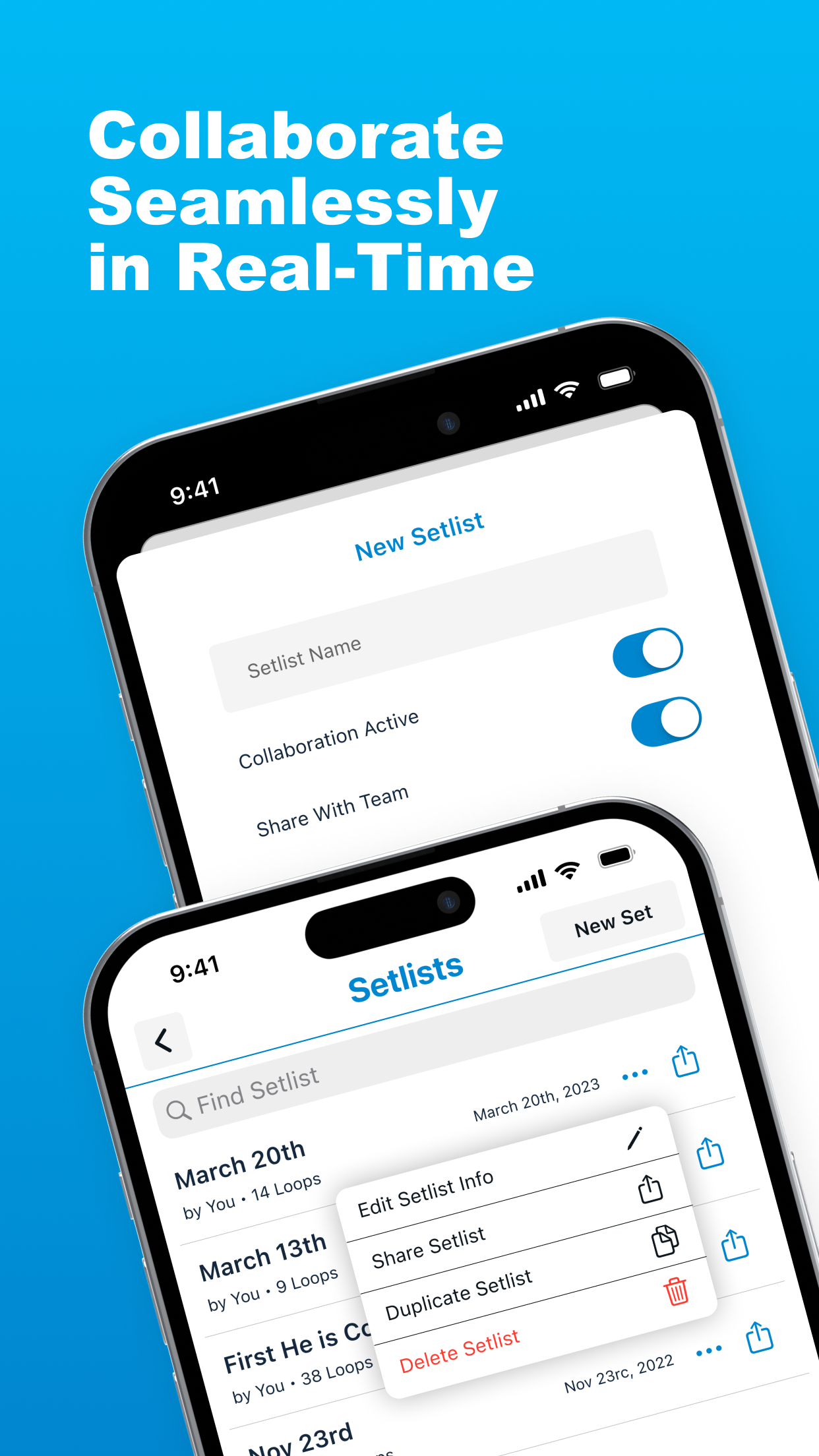
Flip on "Collaboration Active" and "Share With Team" and the whole band works from one live setlist.
1. Build the set for a specific date
Create a setlist for the service — dated sets like "March 20th" keep this week's plan separate from last week's. Add each song, and it carries its own BPM, time signature and key (E Major, F Major, G Major — whatever your team plays it in), so the details live on the song itself instead of in a caption under a photo.
2. Turn on collaboration and share it
Open the setlist options and toggle "Collaboration Active" and "Share With Team." Send the invite link once — in the same group chat you already use — and everyone who joins sees the real setlist in the app, not a picture of it.
3. Edit once, everyone updates
Swap a song, change a key, reorder the set: the change syncs to the team in real time. The Saturday-night swap stops being an announcement you hope people read and becomes something that's simply already there when they open the app.
4. Rehearse at Sunday's tempo
Because songs in a LiveTrackz setlist have loops and a click attached, the tempo on the list is the tempo people actually hear. The drummer practicing at home Tuesday and the band on the platform Sunday are locked to the same BPM — the setlist works as a metronome with per-song tempos, not just a reading list. And if you're running backing tracks in the service, the same list drives playback too.
5. Duplicate for next week
Most churches repeat a core of songs. Use the setlist menu to duplicate this week's set, rename it for next Sunday, and swap two or three songs instead of rebuilding from zero.
Tip: Send the invite link when a musician joins the team, not when a setlist is ready. Onboarding people once beats chasing read-receipts every week.
Getting started this week
-
Install LiveTrackz on an iPhone or iPad (iOS 15+) — it's free to download
-
Build one dated setlist with song order, keys, BPMs and time signatures
-
Toggle "Collaboration Active" and "Share With Team," then drop the invite link in your team chat
-
Ask everyone to rehearse from the app before the next rehearsal — then watch how much less you re-explain
Even if you never change your rehearsal process beyond that, killing the screenshot habit is worth it on its own.
One setlist. The whole team. Always current.
LiveTrackz is free to download — shared setlists with keys, BPMs, loops and a click, synced to your band in real time.